
The Cursor agent can't fix what it can't see
Test your iOS app or website by hand. Mark a bug with one key or your voice, and the agent in Cursor gets it with the video, the steps and the logs.
No account. Nothing to install in your app or site.
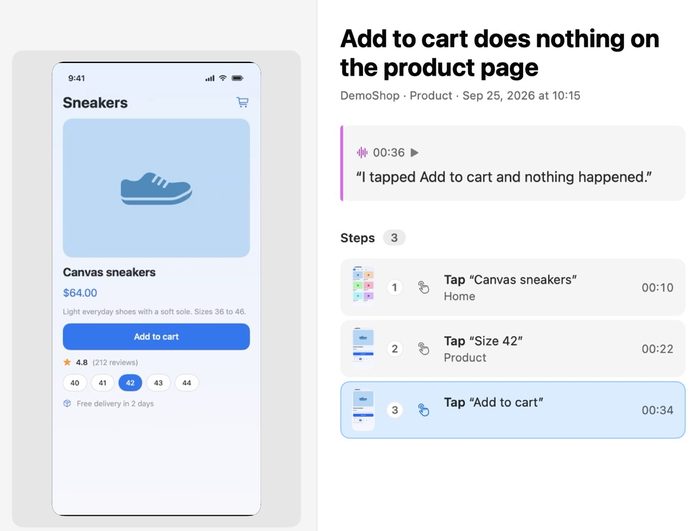
Bugs that cost you an evening
You can't make the bug happen again
Your taps, screens and log lines are saved with the bug.
You can't explain what looks wrong
Cursor gets the screen and your own words.
The AI says fixed, the bug remains
You check the fix and approve it.
What Cursor gets with each bug
- Video of what you saw
- Each tap or click, in plain words
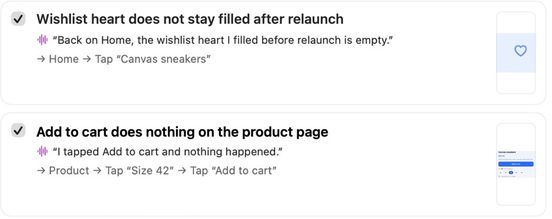
- Logs, console errors and failed requests
- Your own words, by voice or key
- The agent in Cursor reads the bug, changes your code and tells LastBug what it did
Connect Cursor once
1
Pick the tool
In LastBug open Settings, then AI, and choose Cursor.
2
Copy one line
Copy the line LastBug shows and add it to Cursor.
3
Start a new chat in Cursor
Ask it to take the next task from LastBug.
Your recordings stay on your Mac
- Cursor reads only the tasks you hand to it.
- You use your own Cursor plan.
Questions
Do I add code to my app?
No. LastBug records the Debug build you already run in the iOS Simulator. For a website, open its address.
Which Cursor plan do I need?
Your own. LastBug has no AI of its own and no account. It hands the bug to the Cursor you already use.
Can Cursor see all my recordings?
No. It reads only the tasks you hand to it.
Other AI tools
Also see: LastBug for Claude Code, LastBug for Codex, All AI tools.